When you create a course with Embedin, you can share it as a hosted course page, add it to a website you already have, or publish a downloadable course page with a static website host. The right choice depends on whether you want the quickest setup, a course that feels like part of your brand, or more control over the website around your lessons.
One useful distinction: your course platform and your website host do different jobs. Embedin provides the course and learner experience. If you embed the course or publish its downloadable page, your website builder or web host serves the surrounding page.
Three ways to publish your course
| Where learners find your course | Best fit when | What to consider |
|---|---|---|
| An Embedin hosted course page | You want a shareable course link without setting up a separate website | The course page is the destination; add a separate website later if you need more marketing pages |
| Your existing website | You already have a site and want the course within your brand and website journey | Check that your platform and editor support the Embedin integration or embed method |
| A static website host | You want to publish the downloadable course page as a standalone website | You manage the website deployment and should allow its published domain in your course settings |
1. Share an Embedin hosted course page
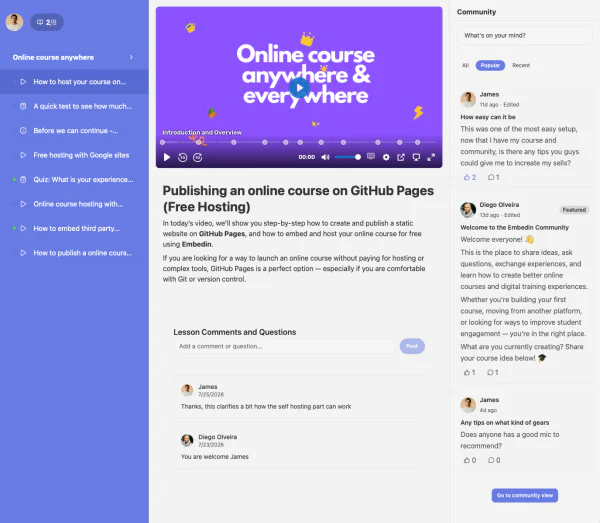
If you do not have a website yet, start with the hosted course page. It gives you a link to share with learners without first choosing a web host, building a page, or deploying files. For example, an Embedin course link can look like https://learn.embedin.com/your-name/your-course.
This is a straightforward option for sharing a course with an audience you already reach through email, social media, or another channel. You can build a separate marketing website later and link to or embed the course there.
2. Embed the course on your existing website
Choose this option if you already use a website as your main home for your business, products, or audience. Your site remains the place visitors discover your course, while the Embedin course appears as part of the learner journey.
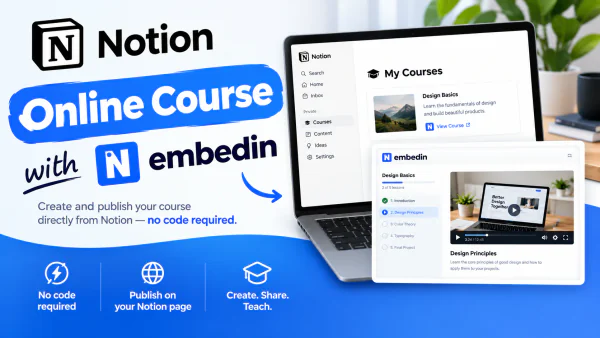
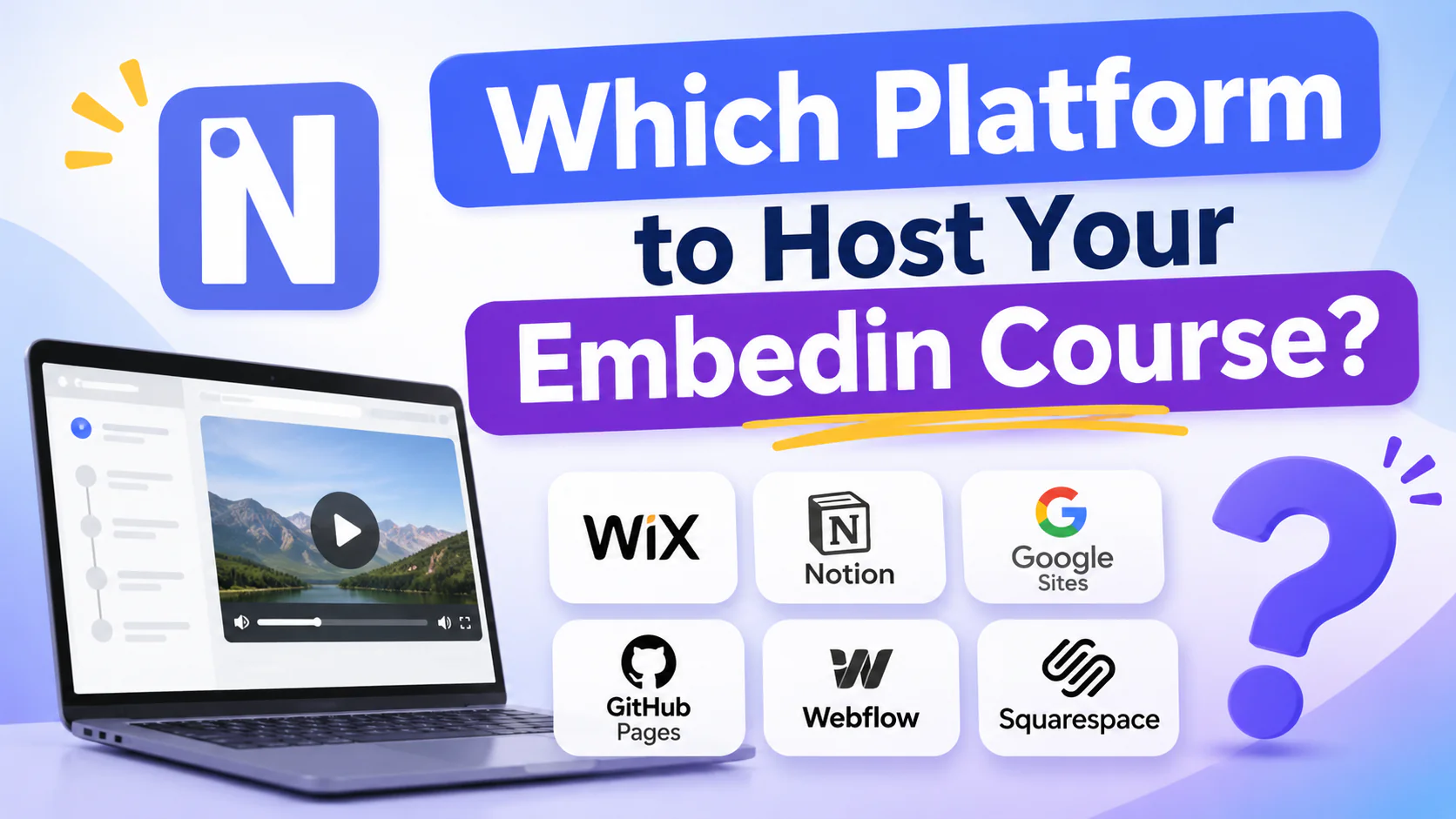
Embeddin has setup guides for Wix, Webflow, Squarespace, WordPress, Notion, and Framer. The steps vary by platform: check the relevant guide and test the published page, because an editor preview may behave differently from your live site.
For a general walkthrough, see how to sell online courses from your own website. If your site accepts HTML embeds, you may be able to add the course with Embedin's embed code. Add the page's domain to the course's Allowed domains in Embedin settings, then check the course on the published site.
3. Publish the downloadable course page on a static host
You can also download the course page as an index.html file and publish it with a static website host. This can be useful when you want a standalone course website but do not need a full website builder. For step-by-step examples, see the guides to GitHub Pages and Cloudflare Pages.
In this setup, the static host serves the website file and Embedin still provides the course experience. Hosting a page on a free tier does not mean that course delivery or Embedin usage is free; check the providers' current plan details. If you use a custom domain, add that domain to the course's Allowed domains too.
How to choose
Use these questions to narrow it down:
- Do you need a website before you can share your course? If not, begin with the hosted course page.
- Do you already have a website that learners know? Check its Embedin setup guide and publish the course there.
- Do you want a standalone page and are comfortable publishing a file? Consider a static host such as GitHub Pages or Cloudflare Pages.
- Do you need a custom domain? Check whether the website host supports your domain, then make sure the course allows the domain learners will visit.
- Will you sell access? Plan how your checkout and course enrollment fit together. Website hosting alone does not set up course payments.
You do not have to make a permanent choice between these options. You can start with a hosted link, then add a website or publish the downloadable page as your needs change.
Before you share the link
Whichever route you choose, test the complete experience:
- Open the public course page or published website, not only the site editor.
- Check that the course appears on desktop and mobile.
- If you embedded or exported the page, confirm the live domain is saved in Allowed domains.
- Test sign-in, enrollment, and checkout if your course uses them.
- Ask someone unfamiliar with the setup to find the first lesson and understand what to do next.
If you want to explore the hosted course option, create a course with Embedin. You can share its hosted page or choose a website publishing option when you are ready.