A recorded lesson can explain a concept to hundreds of students. But sometimes a learner needs help with their own project, a question they cannot quite put into words, or feedback on what to do next.
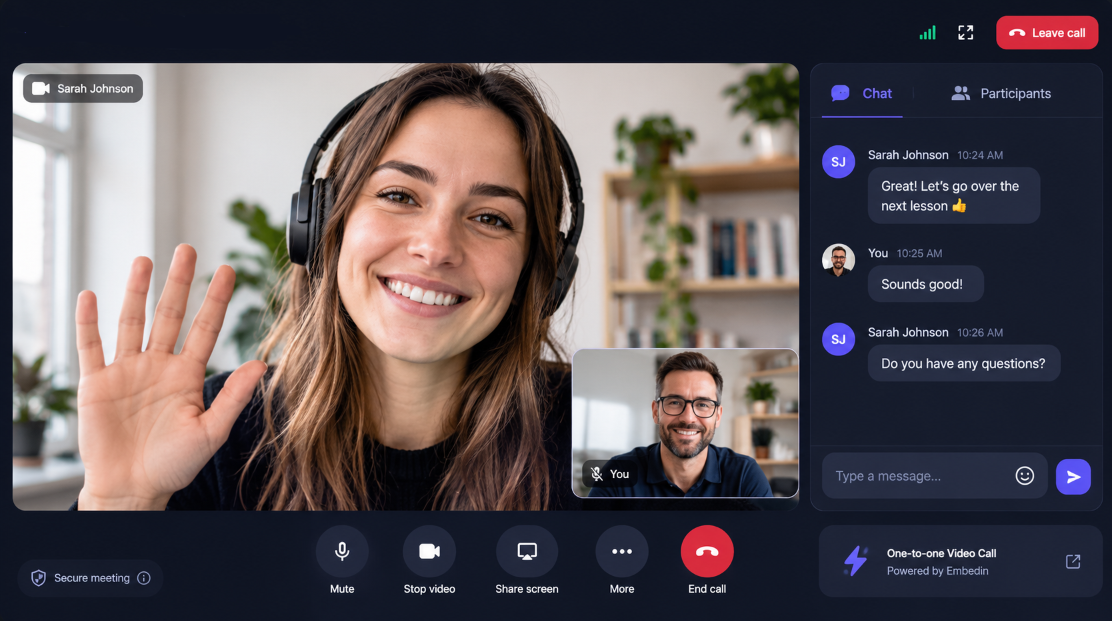
Embedin's 1:1 video calls let enrolled students book personal support directly from your online course. You create a call type, choose when you are available, and let learners select a time. When it is time to meet, you both join a dedicated browser-based call with video, chat, and screen sharing on supported devices.
See the 1:1 video calls feature overview for a quick introduction, or keep reading for setup details.
When to offer 1:1 coaching calls to students
You do not need to turn your entire course into live teaching. A focused conversation can complement the lessons students already work through at their own pace.
Here are a few ways to use it:
- Project feedback: Review a student's work and agree on the next improvement.
- Getting unstuck: Talk through the specific step a learner is struggling with.
- Onboarding: Help a new student choose where to begin and set a realistic goal.
- Progress check-ins: Reflect on what a learner has tried and decide what to work on next.
Give each call type a specific title, such as "30-minute project review," rather than leaving students to guess what the session is for.
How to set up 1:1 video calls for your online course
In the Embedin dashboard, open 1:1 Calls and select New call type.
Choose the course the call belongs to, give it a title, and set its duration. You can also configure a buffer between sessions and a minimum notice period for bookings.
These settings help you make live support manageable. For example, a 30-minute review with a 15-minute buffer gives you time to finish notes before the next conversation.
Set your availability for student bookings
Open Availability for your call type and add the hours you want to offer on each day. You can add more than one time range to a day, or switch a day off when you are unavailable.
Check the timezone shown on the page before saving. Your availability is defined in the call type's timezone, while students see booking times in their browser's timezone.
Start with a schedule you can comfortably maintain. A small, predictable window each week is more useful than offering more time than you can reliably give.
How students book a 1:1 call from your course
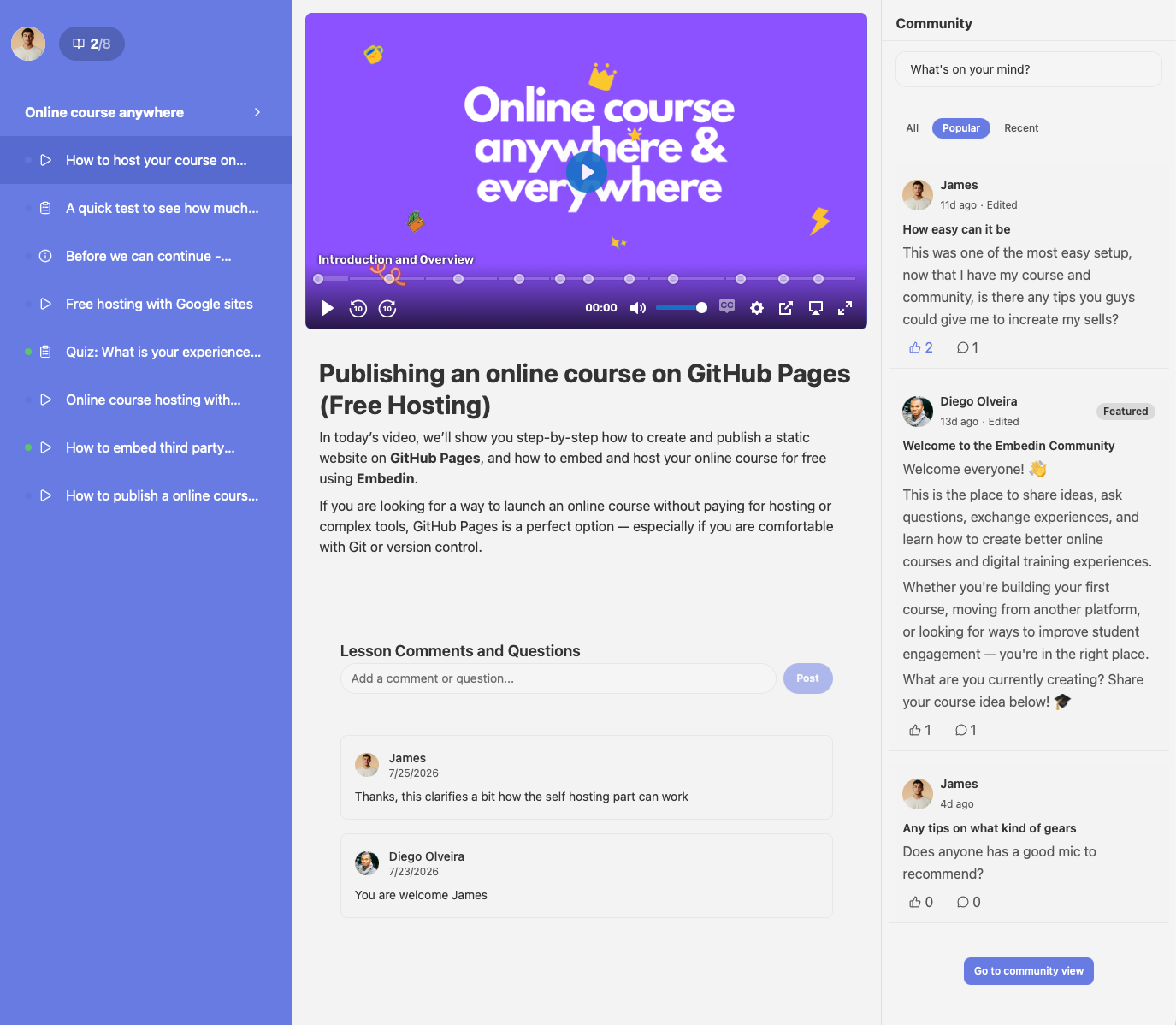
Enrolled learners can open Calls from their course, choose an available call type, and select a time.
The booking experience stays connected to the course rather than relying on a separate scheduling link. Course access is checked when a student books and again when they request access to the call.
Creators can review their bookings in the dashboard. The dedicated call app also provides an upcoming-call list for signed-in users.
How to join a video call and share your screen
The Join button becomes available five minutes before the scheduled start. The call opens in its own tab, so navigating the website that contains your course does not close the meeting.
Inside the call, you can:
- Turn your microphone and camera on or off.
- See the other participant and your own video preview.
- Share your screen on supported browsers.
- Send messages in the call chat.
Screen sharing is useful when "this part isn't working" is easier to show than explain. Chat gives you a place to share a short note or link without interrupting the conversation.
Chat is temporary: messages are delivered to participants who are connected at the time and are not restored after a reload or disconnect. Save any links or action items you want to keep before leaving.
Allow microphone and camera access when your browser asks, and check your connection before the session. Screen-sharing support and permission prompts depend on your browser and device.
Make each session useful
A little preparation keeps a short call focused:
- Ask the learner to bring one question or a piece of work to review.
- Refer back to the relevant lesson instead of repeating the whole course.
- Use screen sharing when it makes the problem clearer.
- Finish with one practical next step.
For questions that would help the whole group, encourage learners to continue the discussion in your course community. Use private calls for the feedback that benefits from individual attention.
Bring personal guidance into your course
Recorded lessons, community conversations, and individual calls serve different needs. Together, they give students a way to study independently, learn from others, and get direct help when they need it.
If you are still preparing your course, start with our guide to selling online courses on your own website. For more ways to support learners between calls, see how to keep students engaged in online courses.
To get started, open Embedin, create a call type for your course, and save your availability. Then check the booking experience as an enrolled learner before inviting students to book.
Frequently asked questions about 1:1 course calls
Do students need to be enrolled to book a call?
Yes. Calls are connected to a course, and students need access to that course. Embedin checks course access when a student books and again when they request access to join.
Which timezone do students see when booking?
Students see booking times in their browser's timezone. Creators set their available hours in the call type's timezone, shown on the Availability page.
Do students need to install a video meeting app?
No separate meeting app is required. The call opens in a dedicated browser tab. Participants need a compatible browser and must allow microphone or camera access to use those devices.
Can I share my screen during a 1:1 call?
Yes, on browsers and devices that support screen sharing. Use the screen-sharing control in the call and choose what to share in your browser's permission prompt.
Are call chat messages saved?
No. Chat messages are only delivered to participants connected at the time and are not restored after a reload or disconnect. Save important links and notes before leaving.
When can participants join a booked call?
The Join button becomes available five minutes before the scheduled start. Access is limited to the booking's participants and the allowed join window.